
1. Introduction:#
If you are a beginner exploring Linux or someone who wants to simplify repetitive then you should learn Bash scripting.
In this blog, you will have examples of each step. You will learn how to Create a script , make it executable and you will understand essentials concepts like declaring variables, user input , comments , if-else conditions loops and you will explore practical automation tasks.
2. What is Bash scripting:#
BASH → Bourne Again Shell
It is the most common implementation of shell program for Linux system.In bash, we can write automated programs to execute stuff on our computer. These programs are called bash scripts. At lowest form, bash scripting is just a way to have a bunch of commands, run one after another, commands u save in a text file & then execute as a script.
Bash is not only for running commands but also it is a programming language that let’s you automate tasks that would otherwise be very time consuming to do manually. It has all kinds of cool features, if statements, while loops, ability to have variables it almost sounds like a programming language. It is a command interpreter, or a shell used for Linux or Unix system.
3- Create your first script File:#
Create a file by running given command in the terminal.
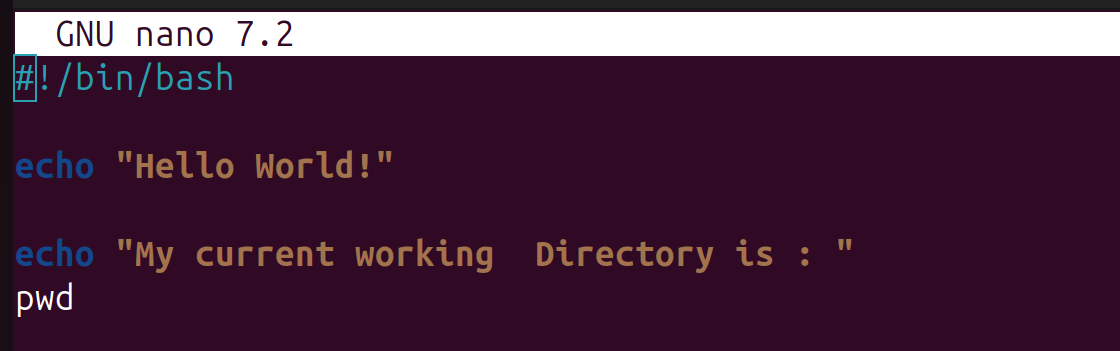
nano myfile.shNow write what you want. In my case, i want to display Hello world! and the path of that script. A screenshot of my script is given below.
1- How to make a bash script executable:#
Now , you have created a file but still it;s not executable . So, to make it executable run the given command in the terminal. where,
chmod = change file permissions
+x = make file executable
sudo chmod +x filename.sh2- How to run a bash script:#
Then, after making a bash script executable , run it by using the command given below. This command will show contents of my current directory.
./filename.sh
4. Working with Bash scripts:#
1- Declaring a Variable#
In bash scripting, there is a format to store a value in variable. And when you want the to print the value stored in the variable then character of dollar is used. In the given example , myname and myage are variables.
variablename ="value"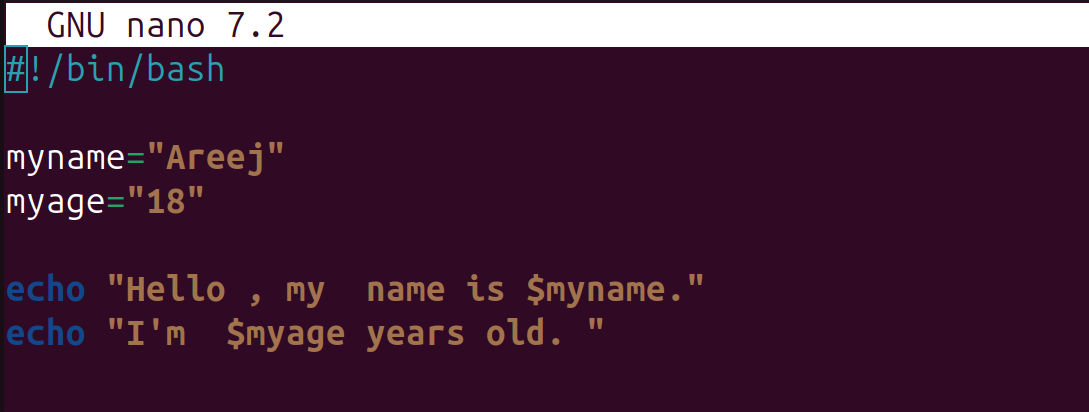

2- Taking Input from the User#
You will take input from the user by using the keyword read.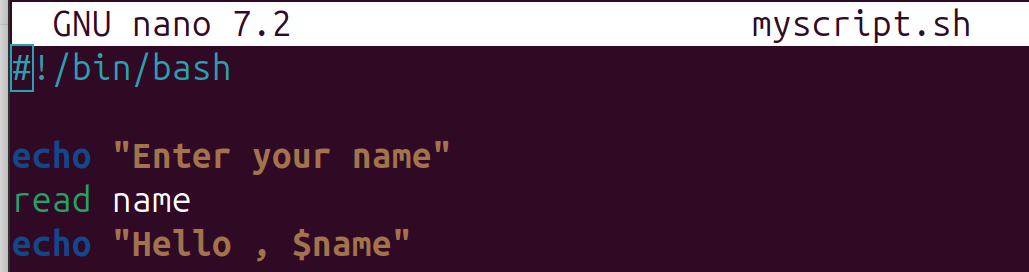
3- Comments in Bash#
You can add comments in your script file. By using # at the start of each line.
4- Using If-else Statements#
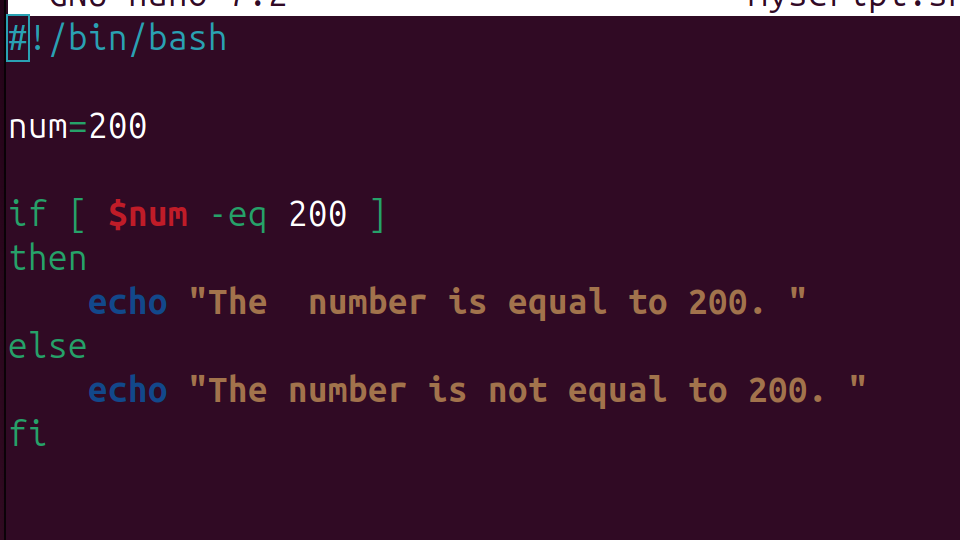
You can use conditional statements in bash scripting too. I have used If else , you can even use if-elif-else

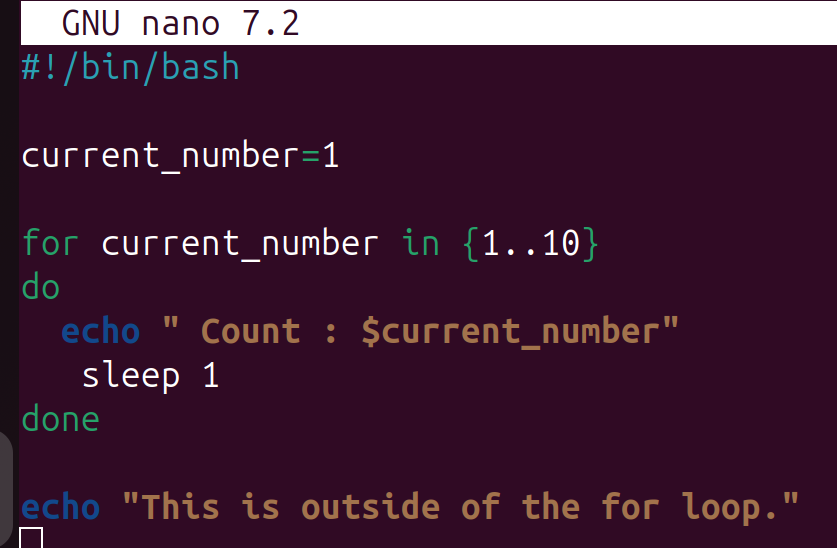
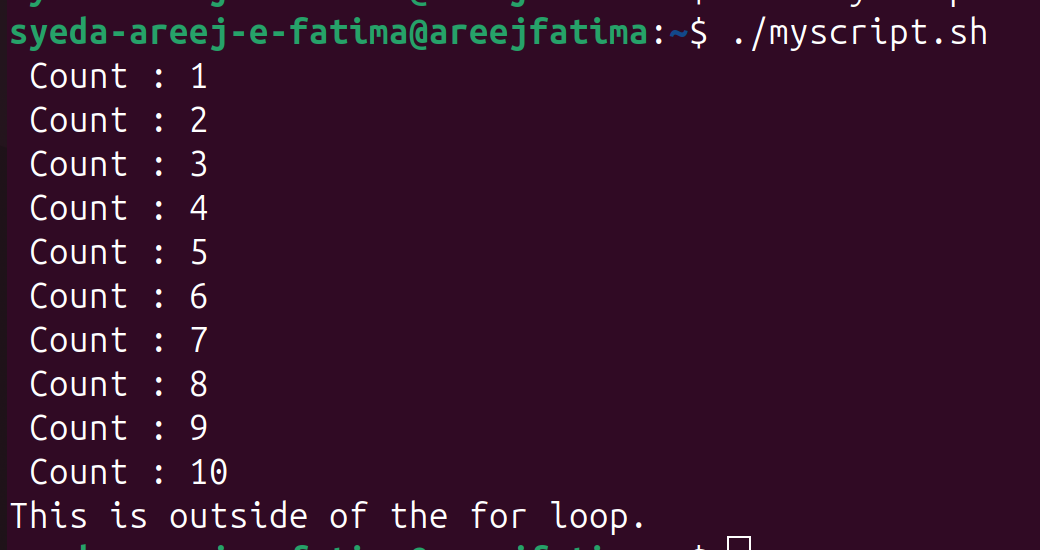
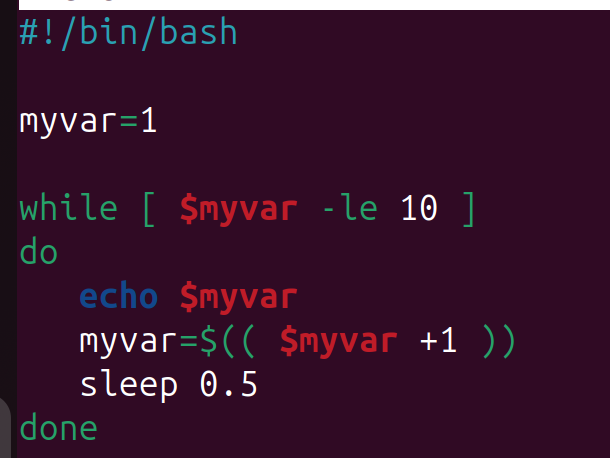
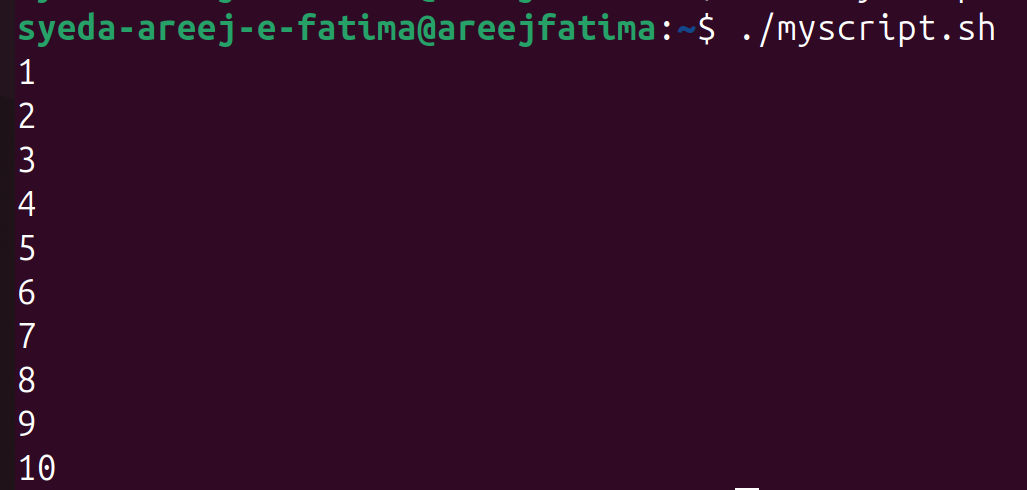
5- Using Loops#
like a programming language , you can use loops in bash scripting too. examples of loops are given below
a. For loop:#
b. While loop:#
5. Automating systems Tasks with terminal commands:#
1- Update and upgrade:#
sudo apt update -y
sudo apt upgrade -y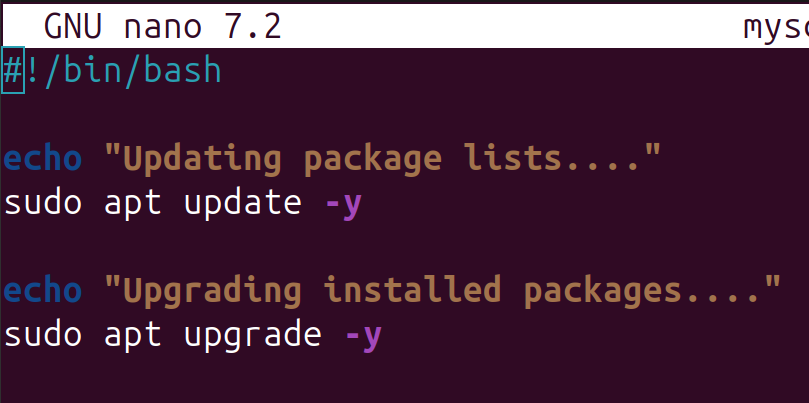
3- Remove and Clean :#
sudo apt autoremove -y
sudo apt autoclean -y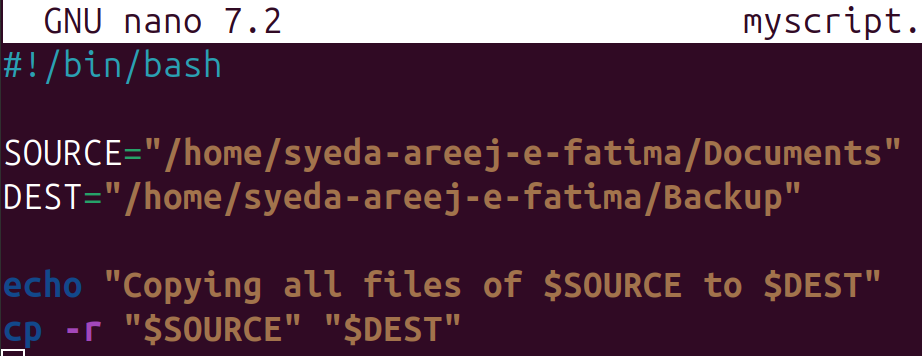
4- Backup a folder#
cp ——> this command copies the files and subfolders of the source and also creates folder of backup on the specified path
-r ——> It means all files and subfolders
SOURCE="/home/user/Documents"
DEST="/home/user/Backup"
cp -r "$SOURCE" "$DEST"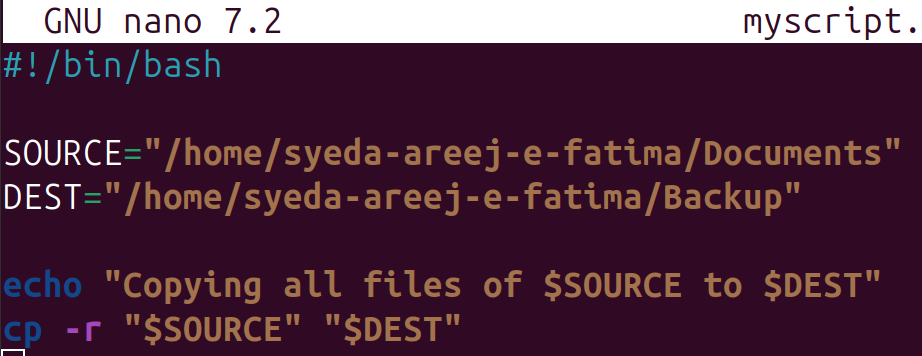
6- Scheduling tasks#
crontab -e ——> edit the scheduled scripts.
crontab -l ——> lists all the the scheduled scripts.
crontab -eYour will be asked to select any option . I selected the nano one then you have to enter all these in the given format.
Minute | Hour | day of month | month | day of week
you can put (*) in place of all of them or one of them. * shows any example is given below
20 3 * * * /user/local/bin/scriptcrontab -l7. Conclusion:#
With Bash scripting, you have taken the first step in the journey of Automation .By learning these skills , you can automate your daily workflow which will reduce repetitive tasks