1. Introduction :#
Key Terminologies :#
Virtual Machine#
virtual machine is a computer inside a computer. It behaves like a real computer despite being virtual. But in this guide we will use our VM on a cloud platform instead of running everything locally on computer.
Cloud platform#
Cloud computing means using computing services over the internet instead of using them locally on your own computer. Microsoft Azure, Google cloud infrastructure and AWS are some of the examples of cloud platforms.
SSH key#
SSH (secure shell) is a secure network protocol. It is used to connect and control remote computer through the command line.
In this guide:#
It is a beginner friendly guide, Microsoft Azure is a cloud computing platform over which we will create our virtual machine. And then, we will access it through SSH.
2. Steps to create a Virtual machine connect it via SSH key :#
1- Create Microsft Azure Account#
To setup a Virtual machine on any cloud platform, you need to have an account on that platform. So, first create an Microsoft azure account.
2- Setting up your first Azure Resource#
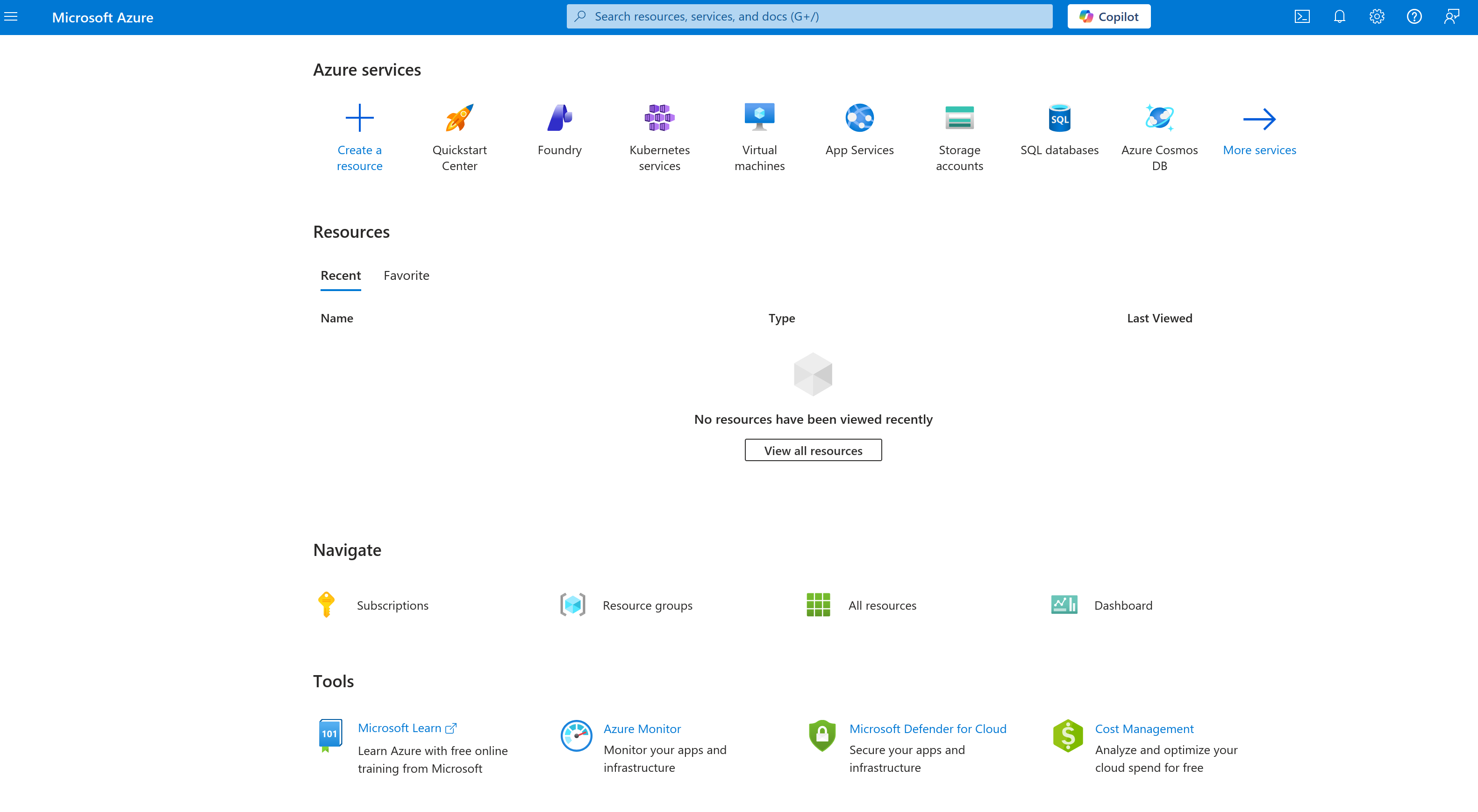
Click the menu icon on the top left corner and select Virtual machine.
Click on Create a resource.
- Project Details#
- Select your subscription, mine is Azure for students.
- Select or create a new resource group.
- Instance details#
- Name your Virtual machine, For instance FirstVM.
- Select the nearest region from your location.
- Choose No infrastructure redundancy required in availabilty options.
- Go with standard security type.
- Pick the ISO image you want.
- Click the x64 version of VM architecture.
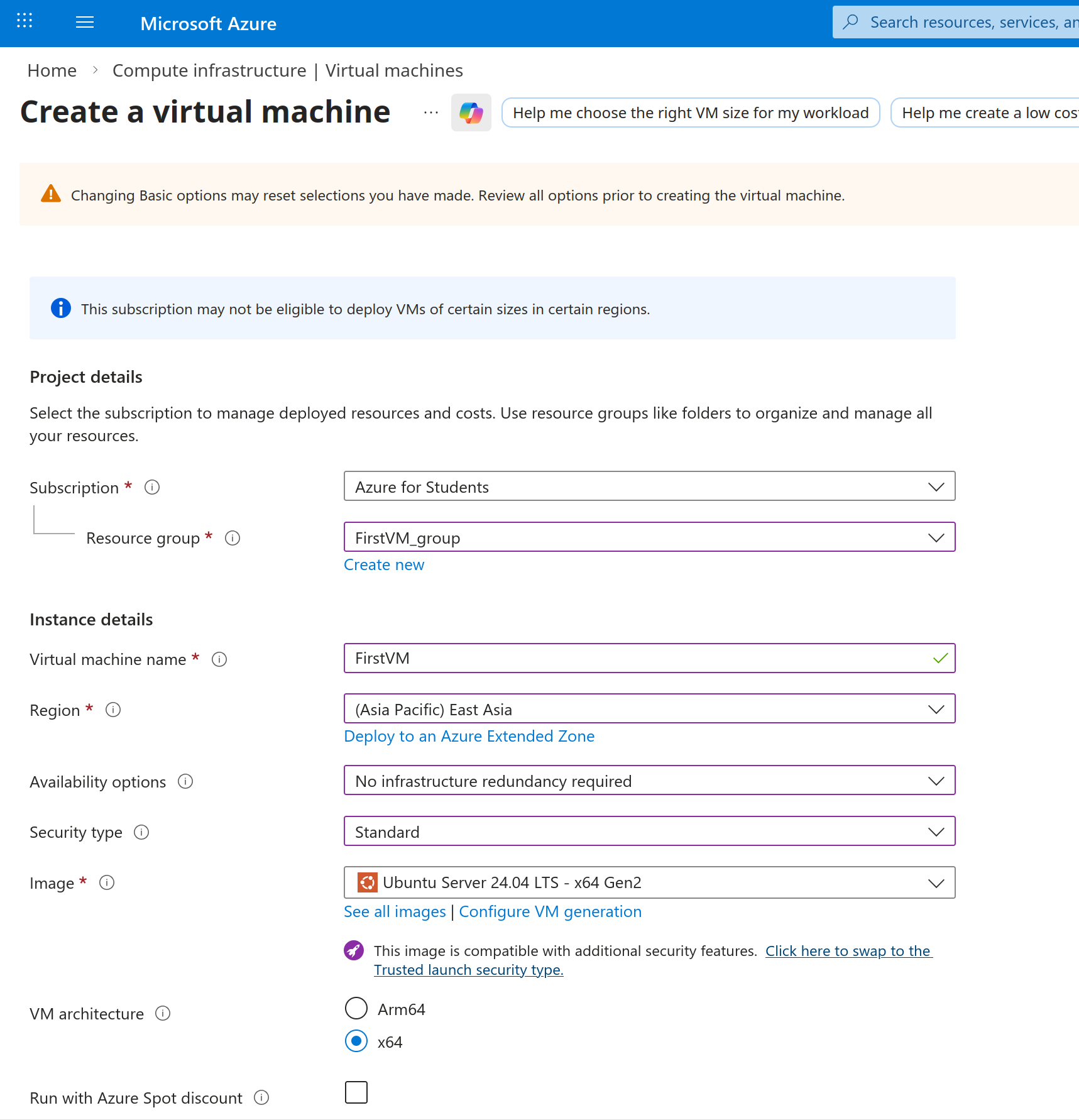
- Select the appropriate size.
- administrator account#
- Opt for SSH public key as a authentication type.
- Enter your username.
- For SSH key type, go with RSA SSH Format.
- Name your key pair.
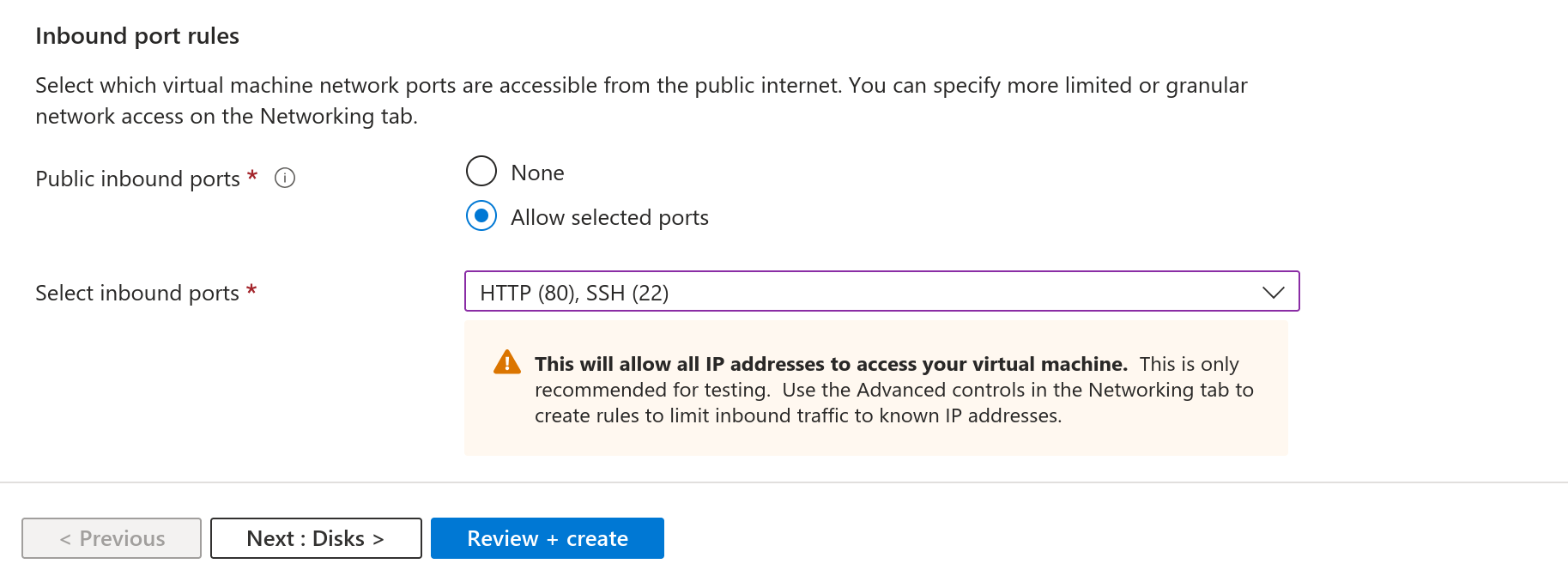
- Inbound port rules.#
- Allow selected ports.
- Select SSH (22), HTTP (80) ports
- Click Review + create.
3- Launching the virtual machine on Azure#
- Now review the VM specifications and then click create.
- Download the private key and create the resource.
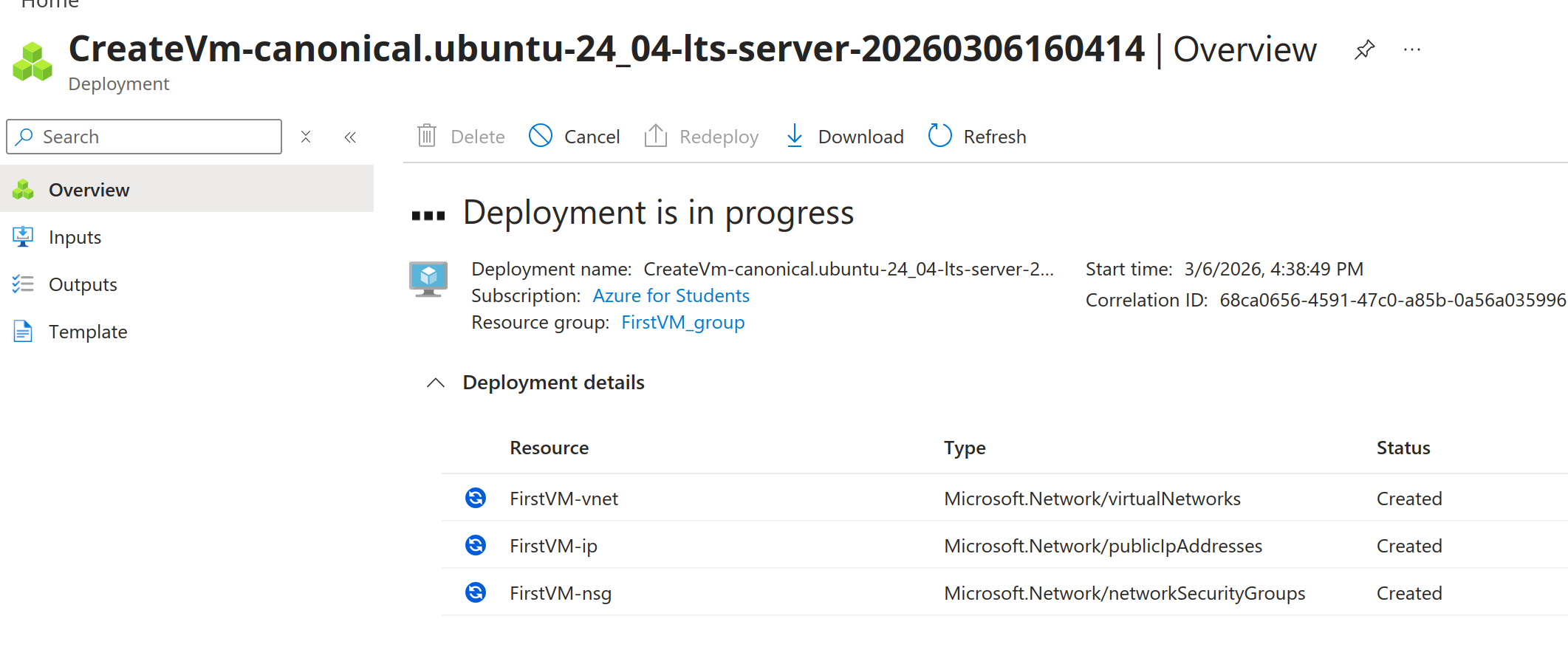
- Wait for the virtual machine to be deployed.
- Once the deployment is completed, click Go the Resource.
4- Connecting to the VM using SSH key#
- Open the terminal and navigate to the directory where you SSH key pair was downloaded.
cd Downloads/- Make the private key readable by only you (owner) and no one else.
chmod 400 pair_key_name.pem- Connect to the VM via SSH key:
ssh -i pair_key_name.pem username@your_ip- Replace the pair_key_name.pem with the name you choosed for your pair key.
- Enter your username.
- Under the connect tab, your Vm’s IP address is available. Copy it and paste it at the place of your_ip in the above given command.
- When asked, type Yes and press Enter.
3. Working inside the Virtual machine:#
1- Verify the system#
uname -aIt displays the following information about system.
- Operating system
- kernel version
- System architecture (e.g x64)
- Hostname of the machine
lsb_release -aThis command gives information about the linux distribution installed on virtual machine.
- linux distrbution (e.g ubuntu,kali).
- Release version
- description of the OS
2- Update your VM#
Then, update and upgrade your Ubuntu OS.
sudo apt updatesudo apt upgrade -y3- Install tools#
You can install any tools according to your needs. For instance,we will install tools for python language.
sudo apt install python3 python3-pip git -y- Python3 —–> Python 3 interpreter.
- Python3-pip —–> Python package manager,
- git —–> a version control system.
- -y —–> automatically answers “yes”.
4- Create and run a simple python program#
- Create a file named as hello.py
nano hello.pyStuff this file with the content.
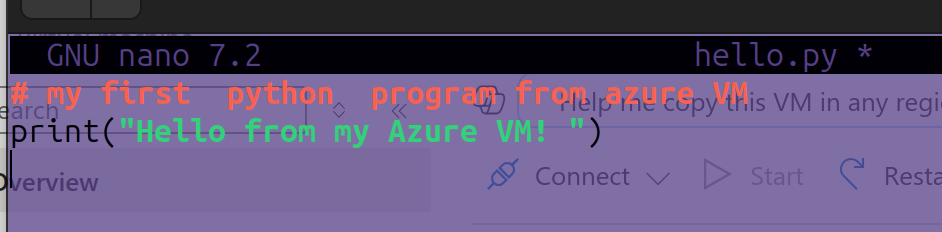
Save (Ctrl + O)—> Enter —-> Exit (Ctrl + X) the file.
Run the program.
python3 hello.py- The output will be displayed in the terminal.
4. log Out the VM :#
After working in the virtual machine, logout from it by using the given command.
logout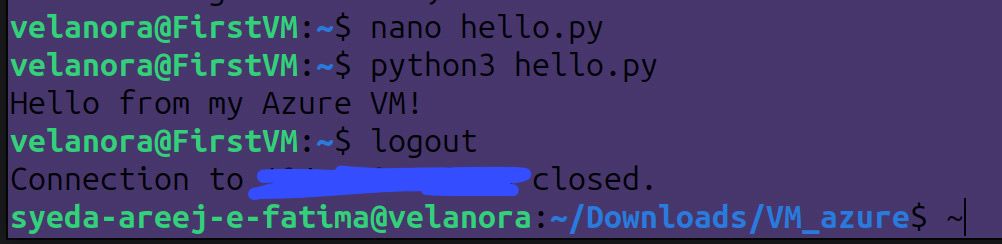
5. Conclusion :#
In this guide, we successfully created and connected to a virtual machine on Microsoft Azure using an SSH key. We verified the system, updated the VM, installed essential tools, and ran a Python program. This process demonstrates how cloud platforms make it easy to create and manage computing environments remotely.